
Webex calling is a cloud-based phone system. Each user receives a business phone number which can be used on phones or the Webex app. More features include call forwarding, group calls, and shared lines.
Setting voicemail PIN #
If voicemail settings cannot be found, contact your administrator. Call settings can be configured from User Hub.
- Sign in to User Hub
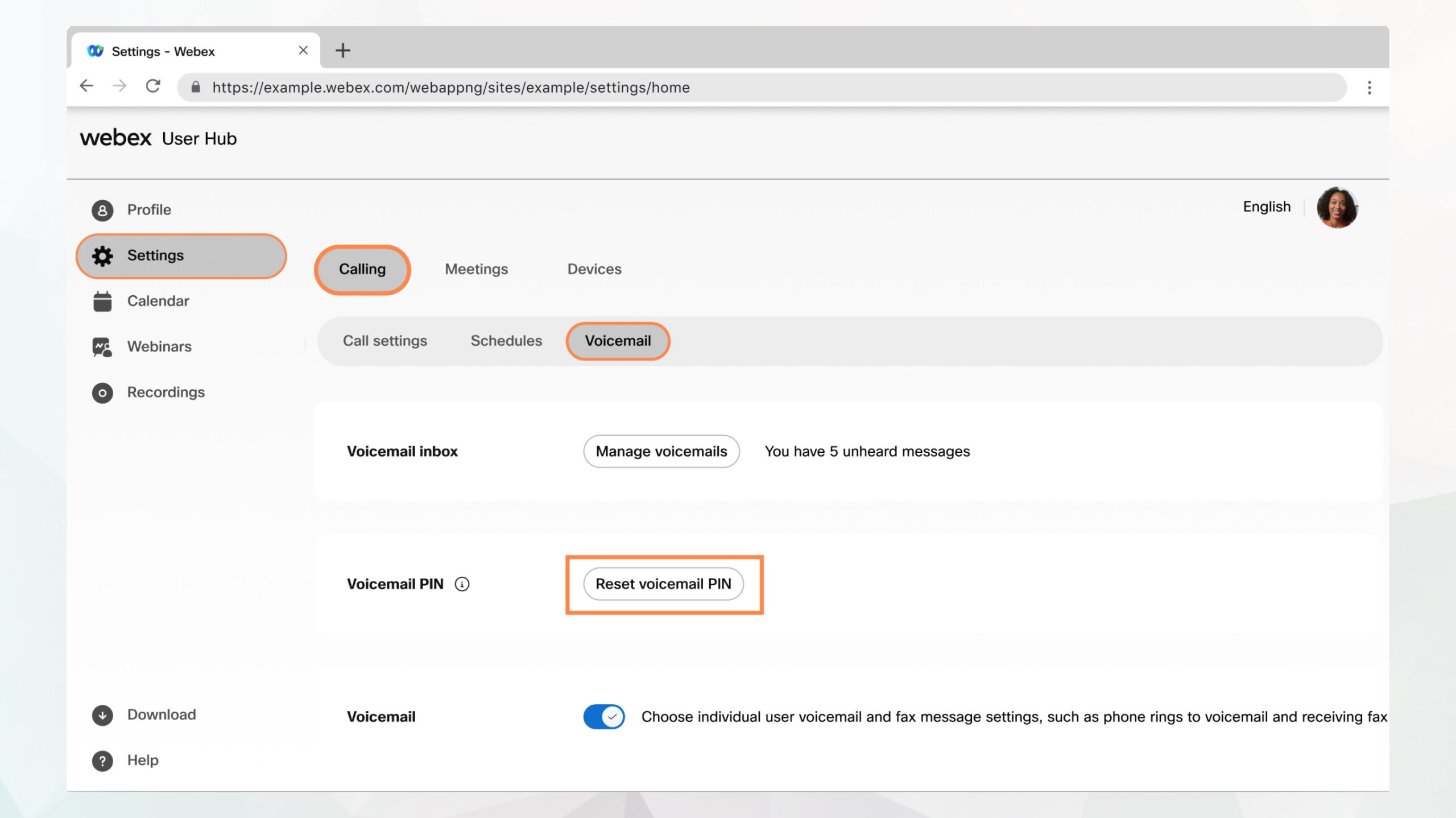
- Go to Settings > Calling > Voicemail.
- Find the Voicemail PIN section and then click Reset Voicemail PIN
- Enter your New Voicemail PIN
- There are PIN requirements
- Re-enter the new PIN in Confirm Voicemail PIN and click Submit.
Setting voicemail greetings #
You can send incoming callers to your voicemail. A voicemail greeting is the message your callers hear when they reach your voicemail. You can set two types of voicemail greetings: Busy, for when you’re in another call, and No Answer, where you don’t answer the call.
- Enabling call waiting won’t direct incoming calls to voicemail
- Enabling call forwarding will override the voicemail settings
- Sign into User Hub
- Go to Settings > Calling > Voicemail.
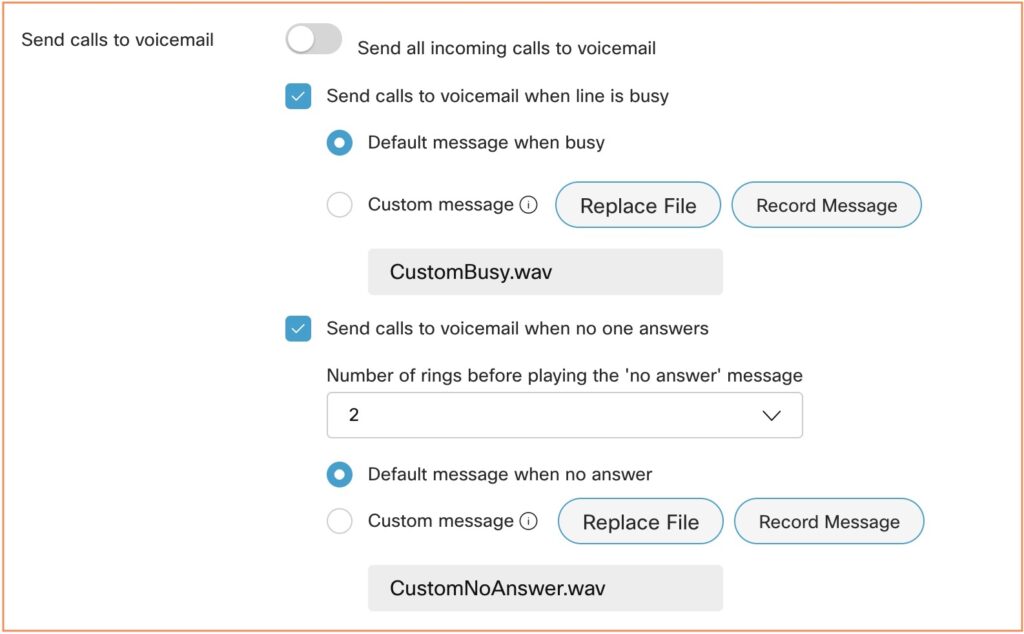
- Find Send calls to voicemail and choose from the following:
- Send all calls to voicemail: This option forwards all calls to voicemail
- Choosing this option disables the two options below.
- Send calls to voicemail when the line is busy: This option forwards calls to voicemail when you’re already on a call. You can set up a greeting to play when the line is busy.
- You can choose between a default message, or upload or record a custom message.
- Send calls to voicemail when no one answers: This option forwards incoming calls to voicemail after a specified number of rings(the amount of rings can be customized).
- Likewise, you can choose between a default message, or upload or record a custom message.
- Send all calls to voicemail: This option forwards all calls to voicemail
Using your campus number off-site #
Since Webex calling is cloud-based, you are able to use your campus number away from campus. You can use the Webex app on your phone to make calls using your campus phone number.
- Install the Webex app (desktop and/or mobile).
- Sign in with your campus account.
- You can make and receives calls to your campus number directly in the app, anywhere with internet.


