
Faculty, Students, and Staff can use Office applications like Word, Excel, PowerPoint, etc. This allows these people to use these applications for home use.
How do I sign into Microsoft 365?
ACE Apps
- Go to the ACE dashboard and log in
- Select Microsoft Office 365 portal
Alternative sign in
- Sign in directly to Microsoft with your ACE email here
- Note: your ace email is [your ACE ID]@unlv.edu
Download Office apps on your device
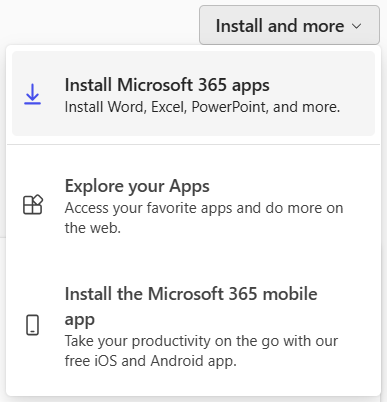
- When signed into Microsoft 365, select Install and More
- Install Microsoft 365 apps
- Select the correct language and click Install Office
- Once you have the installer, follow the instructions to fully install the apps
Activating office apps
- Launch one of the apps (Word, Excel, or PowerPoint)
- Select Sign in or create account
- type in ACE email and click next
- Sign into your ACE account
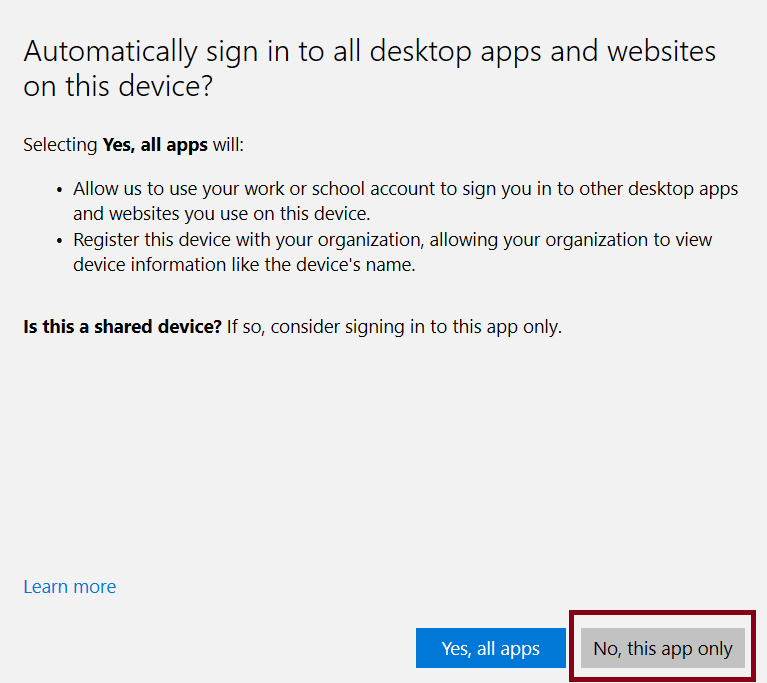
If you are prompted “Automatically sign in to all desktop apps and websites on this device?” select No, This app only.
Note: To sign into OneDrive, use the same log in as the Office apps
Share OneDrive files or folders
- Sign into https://ace.unlv.edu/ with your ACE account
- Select Microsoft Office 365 OneDrive
- Once logged in, Click My Files on the left
- Find the files you would like to share and select them
- Click the Share icon
- In the Add a name, group or email box, type in the person’s name or ACE email and select the profile that pops up to add the person
- Once you select who you want to share, click Send
Accessing shared files or folders
- In the Microsoft Office 365 OneDrive portal select Shared on the left menu.
- There will be two menus at the top, With you and By You.
- Select With you to access files and folders that have been shared by other people.
- Select By you to access files and folders that you shared to other people.
OneNote backup
OneNote does NOT sync data because it is not being used anymore. UNLV IT does NOT have access to OneNote data because it is stored locally on your machine. Make sure to back up OneNote data before making changes.
Exporting most recent OneNote Notebooks
- Open OneNote on the desktop and open the Notebook to export.
- Select File on the top left corner.
- Select Export then Export Current: NoteBook and select OneNote package.
Microsoft apps are very useful and are provided by the university. This is a great resource that should be used to its full capacity.


